Why is iMessage Suddenly Not Working?
It can be difficult to pinpoint exactly why iMessage is not working on your iPhone out of the blue. It could be the result of the dual SIM bug that plagues iOS 26 devices, an issue with your data plan or internet connection, or the iMessage service could be down altogether. Since we can’t get into the specifics of your situation, we have discussed different troubleshooting techniques to help you fix the problem with iMessage.
Easy Checks to Fix iMessage Not Working on iPhone, iPad, and Mac
Let’s first go through some basic checks to make sure that the iMessage not working problem is not caused by some fundamental reasons.
Make sure you’ve set up iMessage
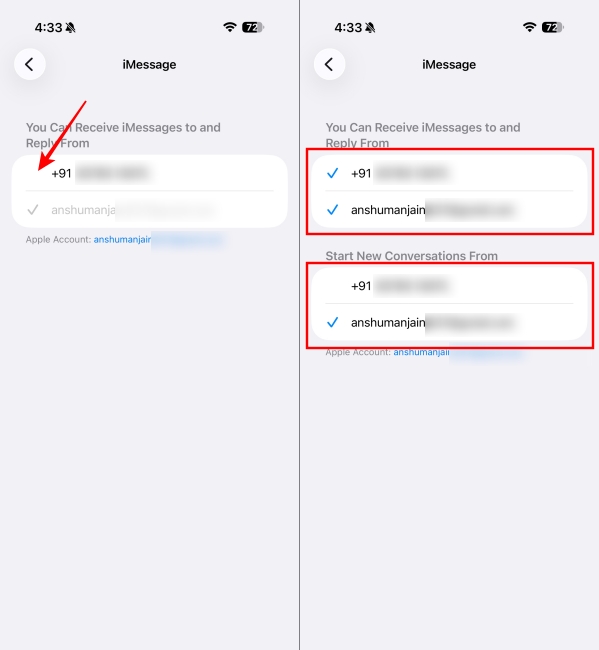
When you switch to a new iPhone, change carriers, or get an E-SIM, your iMessage service could get turned off on its own. There is also a chance that a recent software update disabled the service on your iPhone, iPad, or Mac. So let’s ensure that the iMessage is turned on and set up correctly. If you are facing a ‘waiting for activation’ error, we have a dedicated guide to help you fix iMessage activation errors.
Verify if you’re texting an Android user
In case you are seeing green bubbles instead of blue bubbles in the iMessage chat, and you are unable to share photos, videos, and stickers with them, then it could be possible that the person on the other end is using an Android device. iMessage will show a green bubble when texting Android or other device users since it uses the SMS protocol. Even if you have enabled RCS on your iPhone, it will still show green bubbles in the chat. To verify this, you can try sending a message to someone else whom you usually see blue bubbles in the chat.
Check your internet to fix iMessage activation issue
If you are seeing an iMessage activation unsuccessful error, it might be due to internet issues. This can occur when you switch SIMs or change carriers, or you don’t have enough data plan. Since iMessage is an online service, you can’t use it without that. So ensure you have plenty of 4G/5G data left in your plan. If you have access to Wi-Fi, then check whether your iPhone, iPad, or Mac is connected to it and has a stable internet connection. To verify that, you can try opening a website in Safari. If the website won’t open or it says your iPhone is not connected to the internet, you’ve figured out why iMessage is not working for you. Here are other ways to troubleshoot internet issues:
Check if iMessage is Down
There is a possibility that iMessage servers are down. Although it’s rare, the servers might be down due to a massive bug, or for repairs and maintenance. When it happens, iMessage won’t work for anyone. To verify, head to Apple’s System Status Page, which lists all the recent outages by Apple. If there’s an issue with iMessage, it will be flagged as Yellow. Whereas running services are indicated with a green dot. Even though the System Status Page indicates that everything is fine, there can be an outage that’s local to you. To verify, you can head to DownDetector. It offers detailed outage reports for the past 24 hours, along with an outage map that shows whether you’re in an affected area.
Check Date and Time
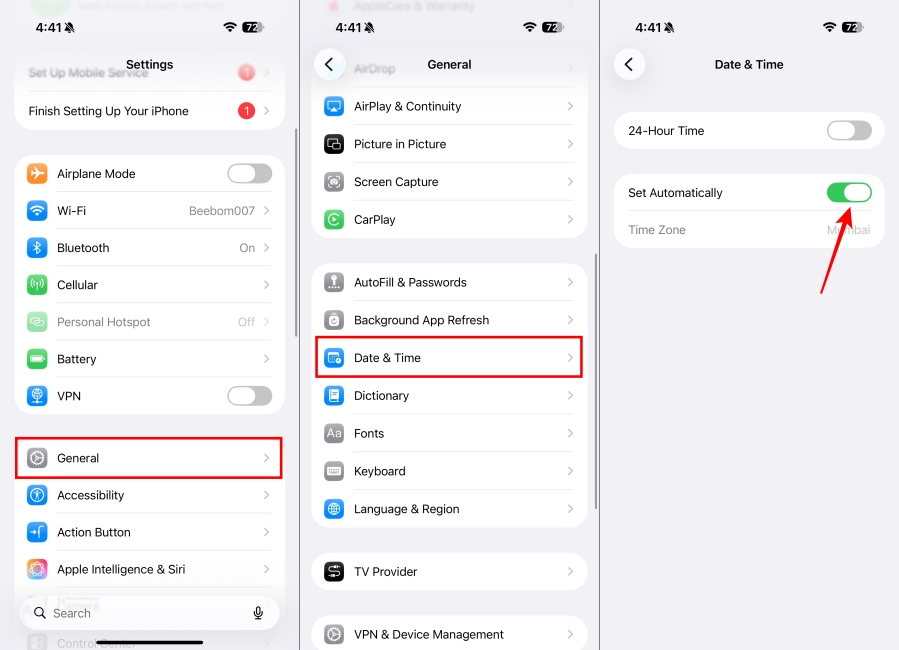
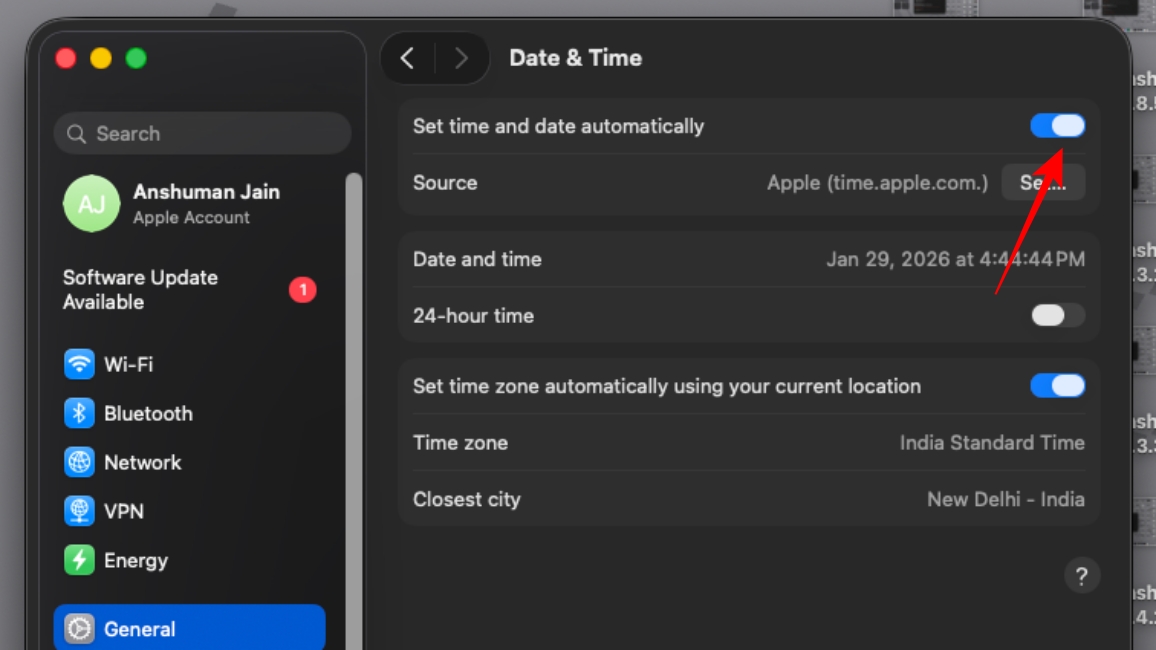
Another reason iMessage is not working for you is the incorrect date and time. This is because any mismatch between your device’s date & time and the server’s date & time can impact network-related functions, including iMessage and FaceTime. To avoid such issues, set the date & time to adjust automatically.
Low Storage Space on your iPhone, iPad, or Mac
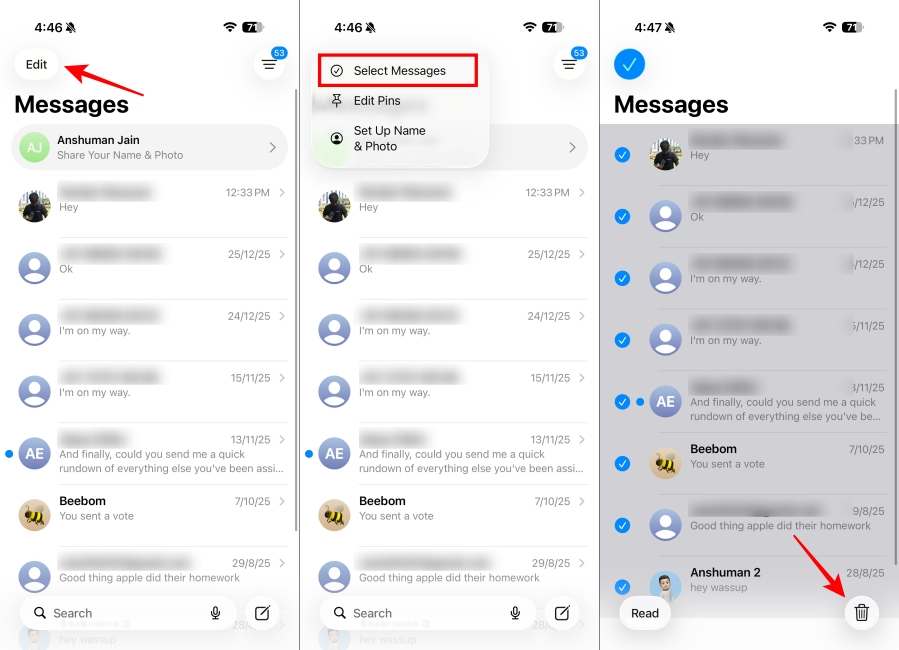
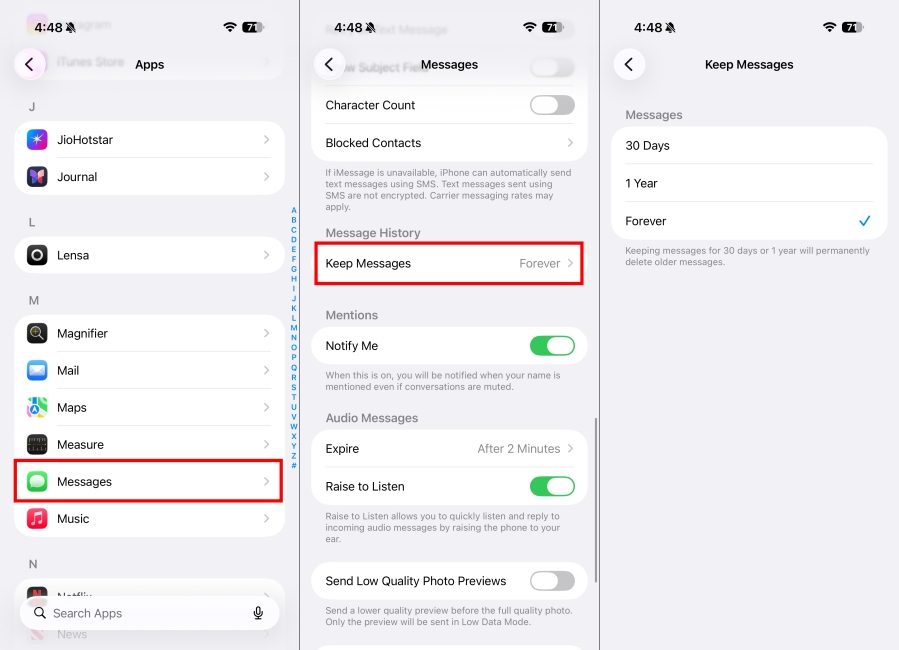
In case you can send iMessages from your iPhone, iPad, or Mac, but are not able to receive new ones, then your device might have run out of storage space. Also, if the Messages app has a lot of photos and videos, the iMessage system might work more slowly. In such cases, the best option is to delete older messages and make space for new ones. To allow your iPhone to automatically delete older messages, head to Settings > Apps > Messages. Here, tap on Keep Messages and choose from 30 Days, 1 Year, or Forever. This should help with the iMessage not working issue. But in case you’ve accidentally deleted an important message, here’s how to recover deleted messages on your iPhone.
Advanced Fixes for iMessage Not Working
If the above troubleshooting methods did not solve the iMessage not working issue, then the problem could be more serious than expected. In this situation, you can try out these advanced methods to get iMessage back up and running again.
Sign in to iMessage again
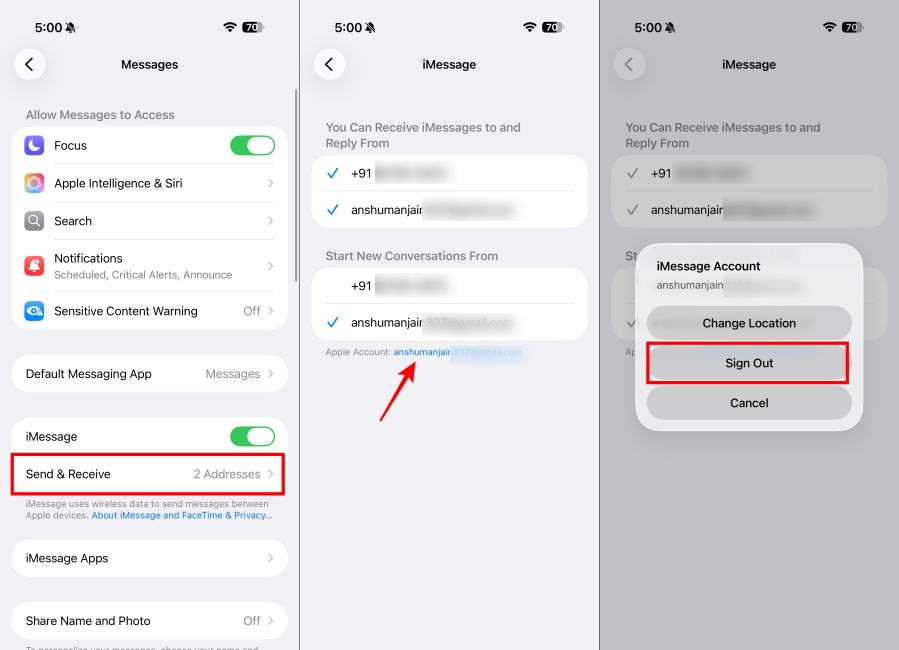
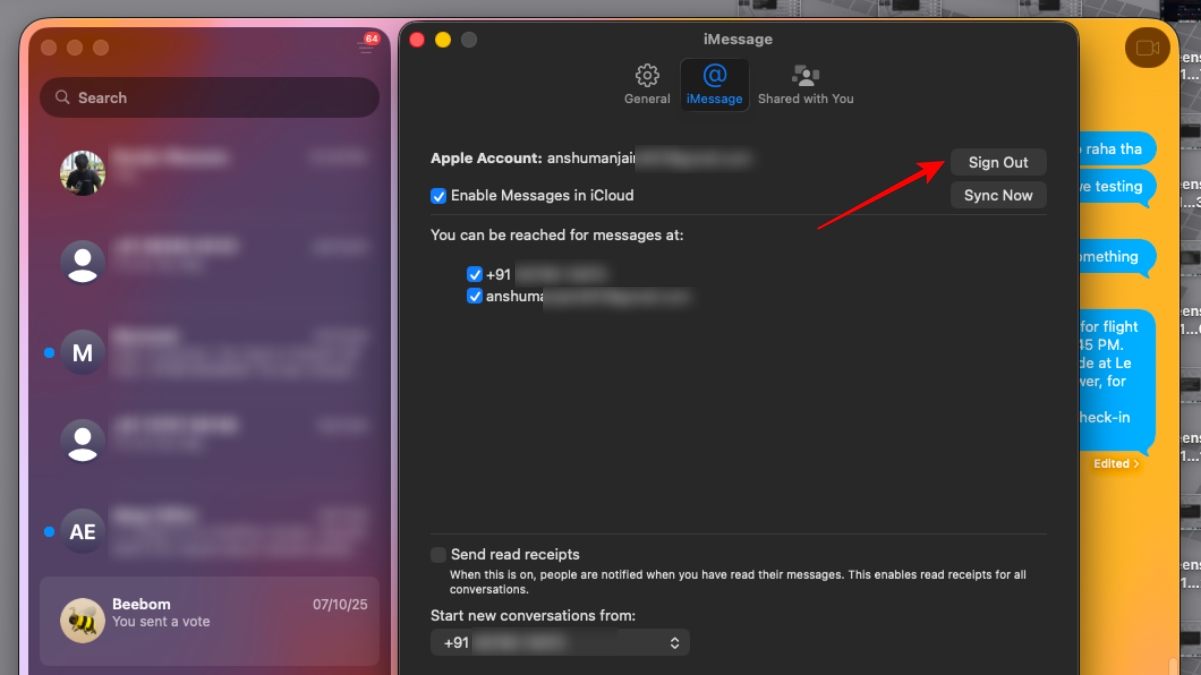
If the above methods didn’t help, there might be an issue with your Apple account. This could be why your iMessage is acting up. To fix this, you need to sign out of iMessage and sign in again. Make sure you have your Apple ID password for this step. If you don’t remember it, here’s how to reset your Apple ID password. Mac users can follow the steps below to sign out and back into iMessage:
Check for software updates
An older software version might stop your iMessage from working properly. So, if your iPhone can’t send iMessages or you can’t receive iMessages on your Mac, you should check if your device is running the latest version of the software.
Reset Network Settings and Reboot your Device
One of the best troubleshooting tips to fix the iMessage not working problem is to reset network settings on your iPhone or iPad, and restart the device. This should be your last resort, as it will forget all your saved Wi-Fi passwords and Bluetooth devices. But it could also give a fresh start to everything, fixing the iMessage problem.
Contact Apple
If you’ve tried all the troubleshooting steps but iMessage is still not working for you, it might be time to visit the Apple store. Something might be severely wrong with your device or the internal components. In such cases, the best is to seek Apple support and get your device diagnosed by geniuses. To avoid any further damage, stay away from any cheap alternatives or DIYs.
Did iMessage Start Working For You Again?
So, these were the best fixes for the iMessage not working issue. In case you are having issues with iOS Contact Posters not working, we have a comprehensive guide for that, too. So, that’s something you can take a look at as well. Let us know in the comments section if these came in handy and solved the problem. Name Email ID
Δ